


Download Screen Capture Tool Pro – Free Secure Screen Recording Software
Overview
Screen Capture Tool Pro is positioned as a versatile media‑capture solution that lets users record and extract scenes from movies, tutorials, webinars, or any on‑screen activity. The tool promises a clean, user‑friendly interface that even beginners can master in minutes, while still offering enough depth for power users who need fine‑grained control over output resolution, file format, and sharing options. One of its standout claims is universal compatibility with a broad range of screen sizes—from tiny laptop displays to ultra‑wide 4K monitors—ensuring that every frame is captured with crisp detail.
The application also supports a wide array of video containers (MP4, AVI, MOV, and more) and image formats (PNG, JPEG, GIF), which makes it simple to integrate captured clips into editing pipelines or social‑media workflows.
However, the product does have a notable limitation: it currently records only video streams and does not capture system or microphone audio alongside the video track. For creators who rely on synchronized voice‑overs or game soundtracks, this shortcoming can be a deal‑breaker, forcing them to pair the tool with separate audio recorders or upgrade to a more feature‑rich competitor.
Despite this drawback, the core functionality—quickly snipping high‑quality video snippets and instantly sharing them via email, cloud services, or direct links—remains a strong proposition for educators, reviewers, and casual gamers who prioritize speed and simplicity over comprehensive audio‑video integration.
In the following sections we’ll dive deep into the exact features offered, walk through the installation and everyday usage, examine platform compatibility, and weigh the pros against the cons. By the end you’ll have a clear picture of whether Screen Capture Tool Pro fits your workflow or if you should explore alternatives such as Snagit, Monosnap, or free snipping tools that also include audio capture.
Key Features
- Multi‑Resolution Capture: Supports 720p, 1080p, and 4K recordings, automatically detecting the native resolution of the active monitor.
- Broad File‑Format Support: Export videos in MP4, AVI, MOV, or WebM; save screenshots as PNG, JPEG, BMP, or animated GIF.
- Instant Sharing Options: One‑click upload to Dropbox, Google Drive, or direct email; also generates a shareable link for quick distribution.
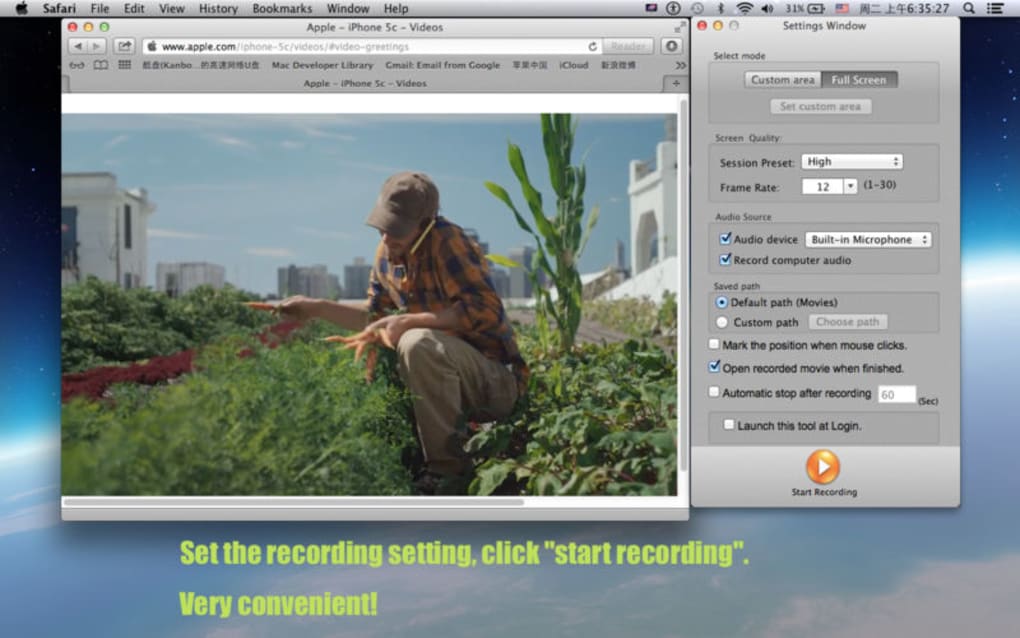
- Customizable Capture Area: Choose full screen, a specific window, or a user‑defined rectangular region with drag‑and‑drop handles.
- Lightweight Engine: Uses less than 150 MB RAM during recording, allowing the tool to run alongside demanding applications.
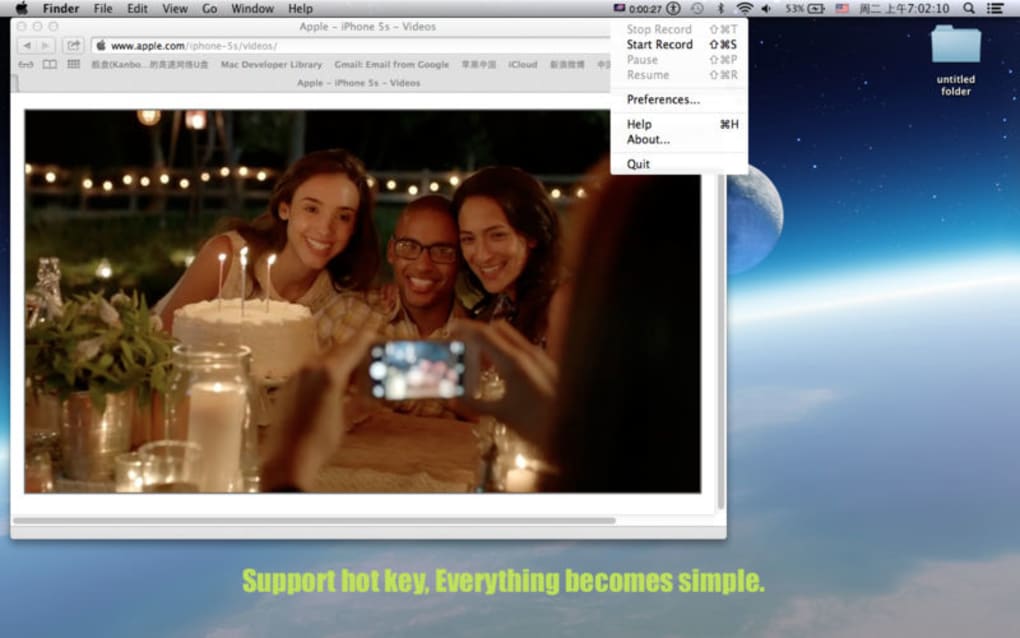
- Hotkey Integration: Assign global shortcuts for start/stop, pause, and snapshot functions, enabling hands‑free operation.
- Annotation Toolkit (Basic): Add simple text overlays, arrows, and shapes after capture—ideal for quick tutorials.
- Scheduled Capture: Set a timer to begin recording after a defined delay, useful for capturing startup sequences.
While the feature set covers most everyday needs, the lack of built‑in audio capture is a glaring omission that differentiates Screen Capture Tool Pro from more complete solutions like Snagit or Camtasia. Nonetheless, the tool’s lightweight nature and straightforward workflow make it a compelling choice for users who mainly need visual snippets without the overhead of editing full‑length video files. The hotkey support and instant sharing capabilities further streamline the process, reducing the number of steps between capture and distribution—a critical factor for content creators who operate under tight deadlines.
Installation & Usage Guide
Downloading the Installer
Begin by visiting the official Screen Capture Tool Pro website and clicking the “Download Free” button. The installer is offered in both a Windows .exe package and a macOS .dmg file. For Windows users, the installer size is approximately 85 MB; macOS users will receive a 92 MB DMG. The download is secured via HTTPS, and a SHA‑256 checksum is displayed on the site for verification, ensuring the file is free from tampering.
Step‑by‑Step Installation
- Run the Installer: Double‑click the downloaded file. On Windows, you may need to confirm the User Account Control (UAC) prompt; on macOS, drag the app icon into the Applications folder.
- Accept the License Agreement: Read through the EULA and click “I Agree” to proceed.
- Choose Installation Path: The default location works for most users, but you can specify a custom directory if you prefer.
- Component Selection: The installer offers optional shortcuts (Desktop, Start Menu) and an auto‑update module. Enable the auto‑update feature to receive security patches automatically.
- Finish Installation: Click “Install” and wait a few seconds. Once complete, launch the application from the shortcut or Applications folder.
First‑Run Configuration
Upon first launch, Screen Capture Tool Pro presents a quick‑setup wizard. Here you can define default output folders, select your preferred video codec (H.264 is recommended for balance between quality and file size), and configure hotkeys. The wizard also prompts you to test the capture engine by recording a 5‑second clip of your desktop; this ensures that your graphics drivers are compatible and that the application can access the screen buffer without issues.
Typical Workflow
1. Select Capture Mode: Choose “Full Screen,” “Window,” or “Custom Area” from the toolbar. 2.
Set Destination: Choose a folder or cloud service where the file will be saved automatically. 3. Start Recording: Press the “Record” button or use your predefined hotkey (default: Ctrl + Shift + R).
4. Pause/Stop: Use the on‑screen controls or hotkey (Ctrl + Shift + P to pause, Ctrl + Shift + S to stop). 5.
Review & Share: After stopping, a preview window appears with options to trim the clip, add a quick annotation, and share directly via email or upload to cloud storage.
The entire process from launch to share typically takes under a minute, making it ideal for rapid content creation, bug reporting, or educational snippet generation. For users who need to capture longer sessions, the tool offers a “Continue Recording” option that appends new footage to the same file without re‑encoding, preserving system resources.
Compatibility, Pros & Cons
Supported Operating Systems: Windows 10, Windows 11, macOS 10.14 (Mojave) and later, with limited functionality on Linux via Wine (unofficial). The application is optimized for both Intel and Apple Silicon processors, automatically selecting the appropriate binary during installation.
Pros
- Intuitive UI that requires virtually no learning curve.
- Low system footprint—runs smoothly on older hardware.
- Broad export format support, reducing the need for third‑party converters.
- Instant sharing and cloud integration streamline collaboration.
- Customizable hotkeys enable a hands‑free capture experience.
Cons
- No built‑in audio capture; users must pair with separate audio recorders.
- Lacks advanced editing tools (no timeline, transitions, or effects).
- Linux support is unofficial and may require additional configuration.
- Free version adds a subtle watermark after 10 minutes of continuous recording.
- Limited annotation features compared to competitors like Snagit.
FAQ & Conclusion
Can Screen Capture Tool Pro record audio from the system?
No. The current version only captures video. To record audio you’ll need an external tool such as Audacity or a dedicated screen‑recording app that supports audio.
Is there a limit on recording length in the free version?
The free version allows unlimited recording length, but adds a small watermark after 10 minutes of continuous capture.
Does the software support cloud storage integration?
Yes. You can link Dropbox, Google Drive, OneDrive, or configure a custom FTP server for automatic uploads after each recording.
Can I schedule recordings to start at a specific time?
The tool includes a “Scheduled Capture” feature that lets you set a start delay (in seconds) or a specific date‑time for the recording to begin.
Is the application compatible with Apple Silicon Macs?
Yes. The installer automatically detects the processor type and installs the native arm64 binary for optimal performance on M1/M2 Macs.
Conclusion
Screen Capture Tool Pro delivers a focused, lightweight solution for anyone who needs to grab quick video snippets without the bloat of full‑scale editing suites. Its ease of use, broad format support, and built‑in sharing tools make it especially attractive to educators, reviewers, and gamers who want to highlight moments instantly. The primary drawback—absence of audio capture—means it isn’t the best fit for comprehensive tutorial production or game streaming, where synchronized sound is essential. If your workflow revolves around visual documentation and you can pair the app with a separate audio recorder when needed, Screen Capture Tool Pro offers excellent value, especially given its free tier and affordable upgrade path.
Ready to try it out? Download Screen Capture Tool Pro now and start creating crisp, share‑ready video clips in seconds.







